Claude Desktop
Record your Claude Desktop chats and Cowork sessions as traces, then read them in the tracesage UI or ask Claude about them over MCP. Nothing is installed into Claude Desktop for recording: the collector reads files Desktop already keeps on your machine.
Connect it
1. Install tracesage with the apps extra.
uv tool install puts tracesage in ~/.local/bin. On macOS that matters if you
plan to use MCP (step 5): Claude Desktop is not allowed to run programs or read
files under ~/Documents, ~/Desktop or ~/Downloads, so a virtualenv in a
project folder there will not work for it.
2. Connect Claude Desktop.
This writes no config into Claude Desktop. It installs and starts the collector
(a login service on 127.0.0.1:7842), and the collector starts reading Desktop's
local chat store. Running tracesage connect with no app name also covers
Claude Desktop, together with every other app it finds.
3. Open the UI. Go to http://127.0.0.1:7842, switch to Threads, and set Source to Claude Desktop. Each sidebar chat is a thread; each message you sent is a run.
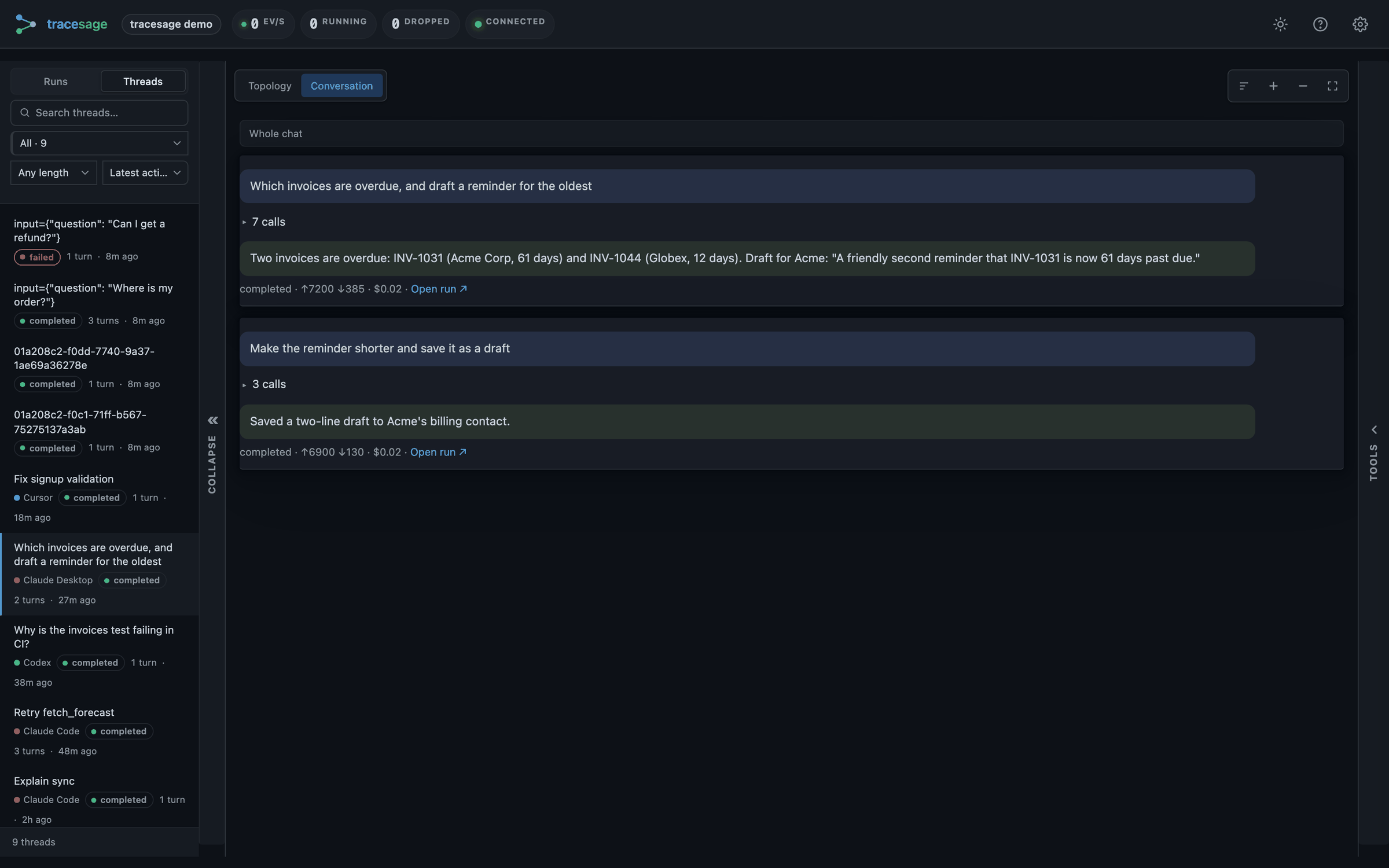
4. Open a turn. Click Open run on any turn to see its trace: the model request (with thinking and tokens when Desktop saved them) and each tool or MCP call, with input and output. In Runs, a run opens on Run trace with the step timeline on the right; Show the whole chat goes back to the conversation.
5. Optional: let Claude query your traces. See Ask Claude about your traces below.
What is recorded
| Desktop feature | Recorded | Where it is read from |
|---|---|---|
| Sidebar chats | Yes, if Desktop saved the transcript on this machine | Desktop's HTTP cache (Cache/Cache_Data) and the claude.ai IndexedDB |
| Cowork (agent mode) sessions | Yes, including subagents | local-agent-mode-sessions/**/audit.jsonl |
| Code tab | Recorded as Claude Code | It is Claude Code; run tracesage connect claude-code (Claude Code) |
| MCP tool calls inside a chat or Cowork session | Yes, grouped under their MCP server | Same files as above |
A chat shows up once Desktop has written it to disk, which happens when you open it. A chat you only ever used on the web or on another computer is not on this machine, so it cannot be recorded until you open it here. Desktop chats are imported in full on first start; there is no 30-day window.
The importer opens Desktop's files read-only and never changes them.
Where Desktop keeps its files
| Platform | Folder |
|---|---|
| macOS | ~/Library/Application Support/Claude/ |
| Windows | %APPDATA%\Claude\ |
| Linux | ~/.config/Claude/ |
Ask Claude about your traces
With MCP enabled, Claude Desktop can call tracesage while you chat: "which runs
failed today?", "summarise thread X", "what did the last subagent do?", "tag this
run regression".
Pick one of the two setups.
Config file (simplest).
This adds a tracesage entry under mcpServers in
claude_desktop_config.json (a backup is kept), pointing at tracesage mcp
with your data dir. Restart Claude Desktop to load it.
Desktop extension (.mcpb bundle).
This writes tracesage.mcpb into your data directory (default ~/.tracesage).
It needs npx. Double-click the file, or drag it into Claude Desktop's
Settings → Extensions, then pick your data directory. The bundle runs the
MCP server with uv.
If npx is not installed, download the extension from the
latest GitHub release.
On macOS, keep both the tracesage program and the data dir outside
~/Documents, ~/Desktop and ~/Downloads. connect prints a warning when
either one is inside those folders.
Tools Claude gets
| Tool | What it does |
|---|---|
list_runs |
Recent runs, filtered by status, text, thread or tag |
get_run |
Status, tokens, cost, tools, models and notes for one run |
get_run_spans |
The latency waterfall for one run |
get_step |
One step; the full payload only when asked |
search |
Full-text search over step text |
list_errors |
Recent failed runs |
list_threads, get_thread |
Chats and their turns |
get_stats, get_topology |
Totals, and how agents, models and tools connect |
compare_runs |
Two runs side by side |
add_note, set_tags |
Write a note or tags on a run |
delete_run |
Delete a run; needs --allow-delete and confirm=true |
Run the server with tracesage mcp --read-only to refuse every write, or with
--allow-delete to enable delete_run. Edit the args of the tracesage entry
in claude_desktop_config.json to add either flag. More in MCP server.
Disconnect
This restores claude_desktop_config.json from the backup connect --mcp made.
If the file did not exist before, there is no backup: delete the tracesage
entry under mcpServers by hand. Without --mcp there is nothing to restore.
Recording stops when the collector stops (tracesage service stop, or
tracesage service uninstall to remove it). To delete what was recorded, see
Privacy and data.
If something is missing
- A chat is not in the list. Open it once in Claude Desktop on this machine, then wait a few seconds.
- No Claude Desktop runs at all. Check
tracesage connect --statusand look forClaude Desktop chatsin~/.tracesage/logs/collector.log. - The MCP server does not start (macOS). Desktop cannot read the program or
the data dir. Reinstall with
uv tool install "tracesage[apps]"and reruntracesage connect claude-desktop --mcp.
More in Troubleshooting.